

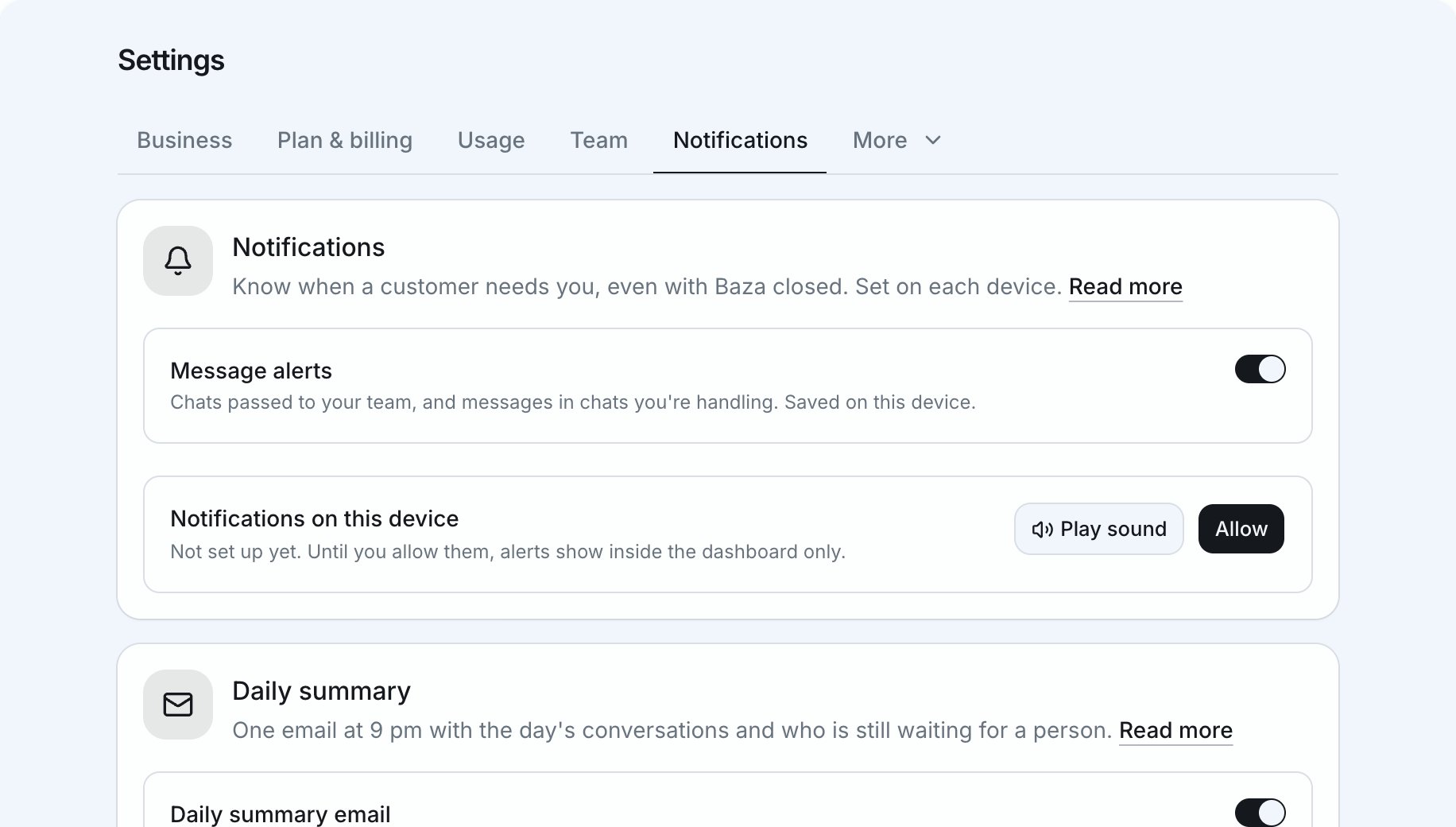
How alerts work
- When a customer asks for a person, everyone on your team who answers customers gets an alert.
- Once you take over a conversation, every new message in it alerts you, and only you. While your assistant is answering, new messages don’t alert anyone.
- A new conversation doesn’t alert anyone. Your assistant answers it, and the daily summary tells you about it.
- You don’t get an alert for the conversation you’re reading.
- Alerts never show what the customer wrote, only their first name, because anyone can see a lock screen. Tap an alert to open the conversation.
Turn on phone and computer notifications
1
Open your notification settings
On the device where you want alerts, go to Settings →
Notifications.
2
Turn on Message alerts
Leave Message alerts on. Press Play sound to hear the sound an alert
makes.
3
Allow notifications
Press Allow. When your browser asks, allow notifications. Alerts now
arrive even when Baza isn’t open.
On an iPhone or iPad, first add Baza to your Home Screen: tap Share, then
Add to Home Screen. Open Baza from the Home Screen, then allow
notifications there.
Daily summary
Each evening you get one email about the day’s conversations: how many there were, what your assistant handled, and who is still waiting for a person.- It arrives at 9 pm in your business’s time zone. You set the time zone in Settings → Business (Brand on a personal account).
- It only comes on days with conversations.
- If you’re in more than one business, you get one email for each.
Stop the daily email
You can turn it off in two ways:- Turn off Daily summary email in Settings → Notifications.
- Use the Turn it off link at the bottom of the email.